Arrows and dots are two of the most useful ways to let people slide the content on a slider. However, due to any specific design requirements or special objectives, you may often want to hide these arrows and dots. Let’s check how to hide them in this documentation post.
Step 1: Go to the Settings Tab #
Select the entire Sliderberg block by clicking the icon on the toolbar. Then, go to the settings tab on the right sidebar.

Step 2: Hide Navigation Arrows and Dots #
By scrolling the settings tab, come to the options, hide navigation arrows, and hide dots. Just toggle on them.
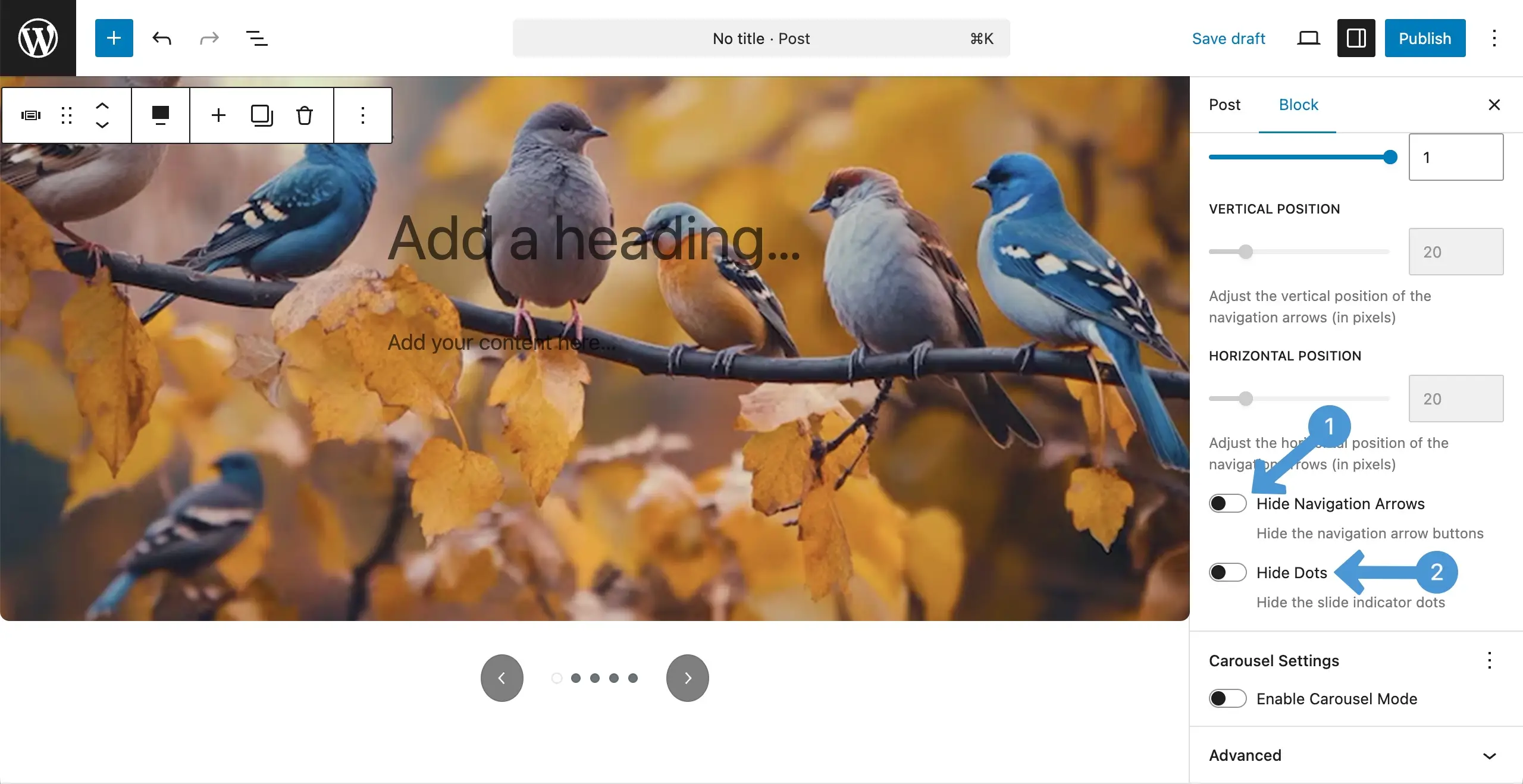
Once these options are enabled, you can see that arrow and dot icons have got hidden.

Thus, you can easily do this.
Conclusion #
Though you now know how to hide arrows and dots on the image slider, it’s not always a good practice to keep them hidden randomly. Only when you have a special purpose or objective can you consider doing this.


