With Carousel Mode, your slides can move continuously and create a more dynamic user experience. You can also control how many slides appear on the screen and how many move at a time. This helps you design sliders that match your content and layout perfectly.
Let’s explore how to enable the course mode in the Sliderberg block.
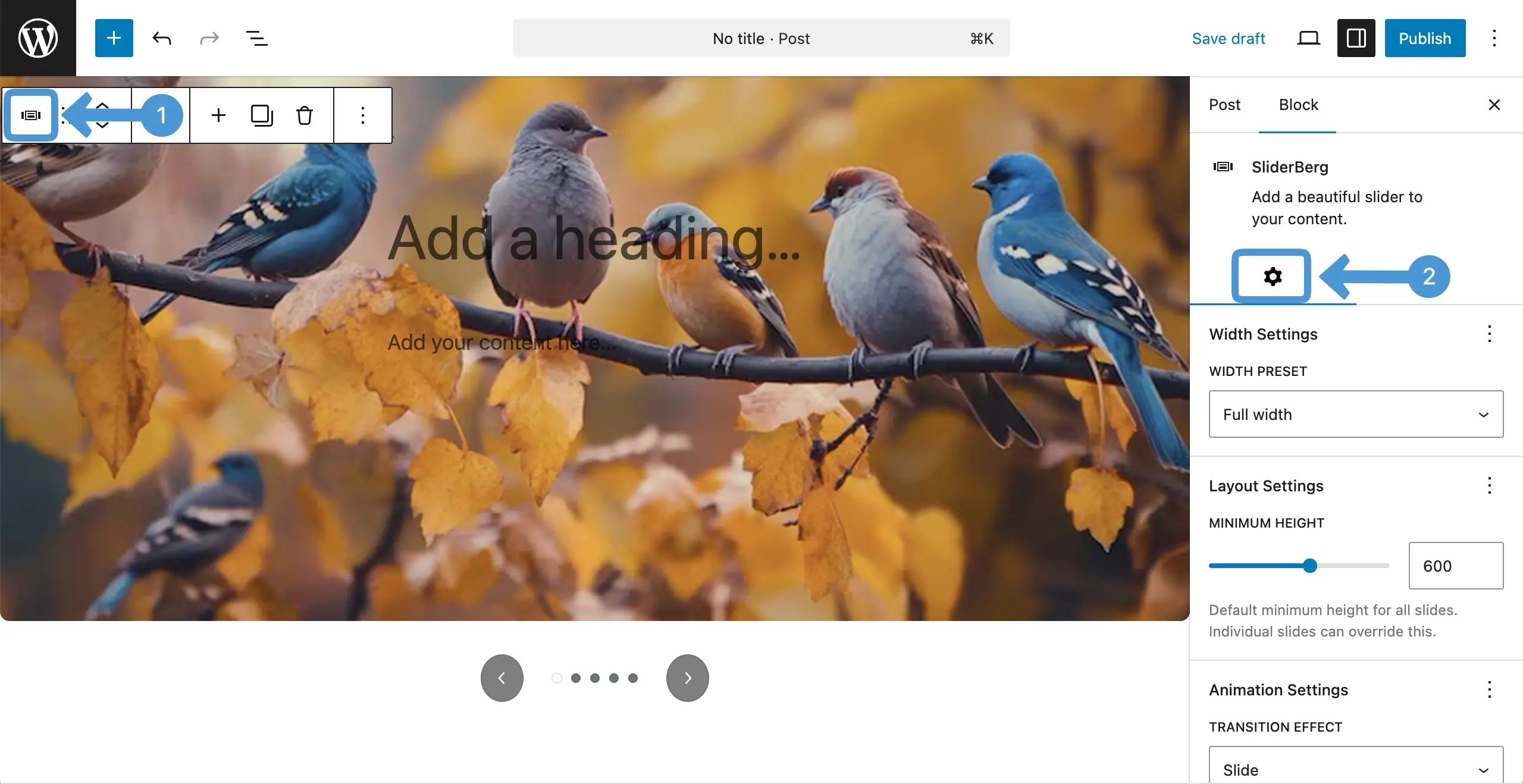
Step 1: Go to the Settings Tab of the Sliderberg Block #
Select the entire Sliderberg block by clicking its icon on the toolbar. Then, go to the settings tab on the right sidebar.
Step 2: Enable the Carousel Mode #
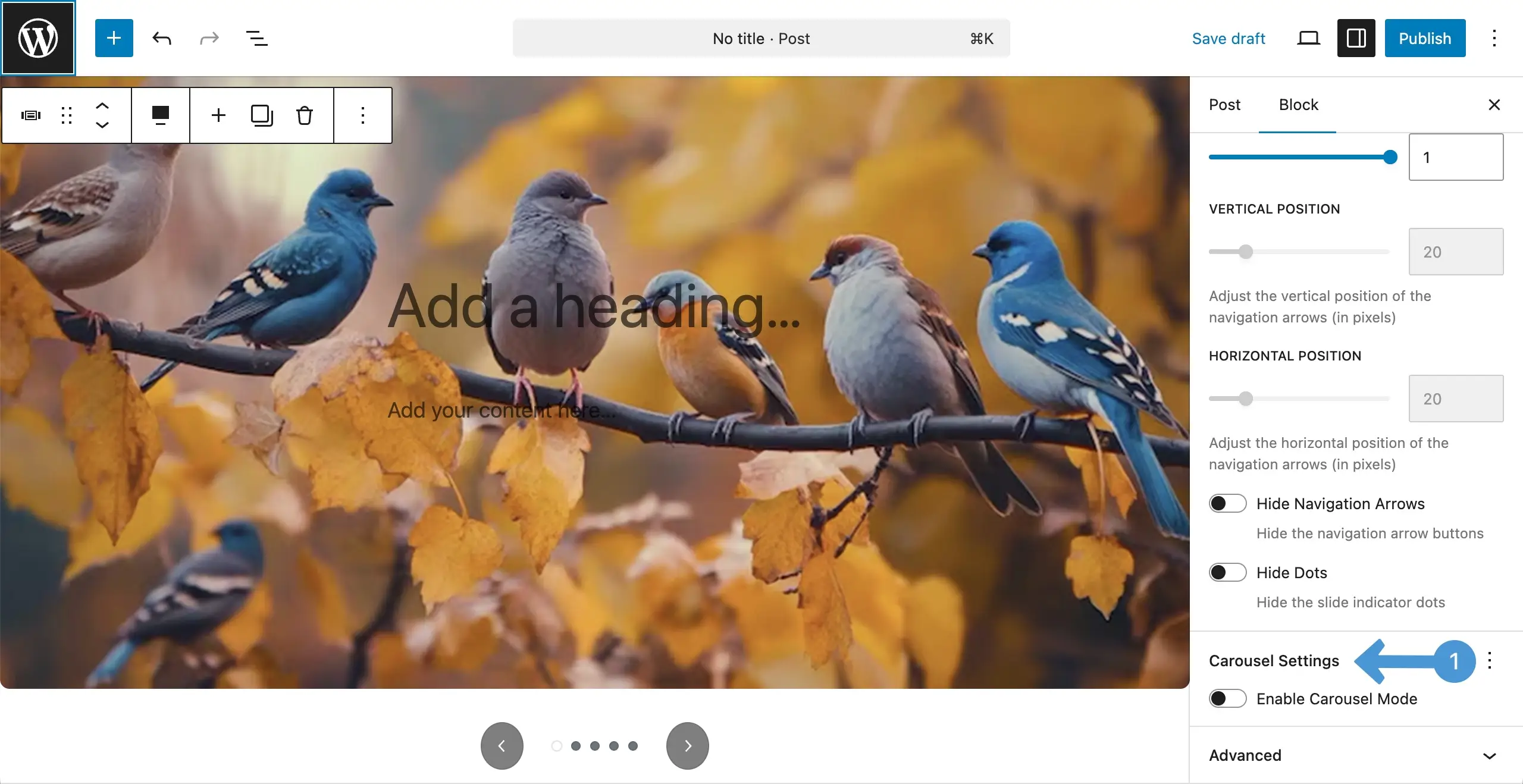
By scrolling down the settings tab, come to the Carousel Settings. Toggle on to activate the ‘Enable Carousel Mode‘.
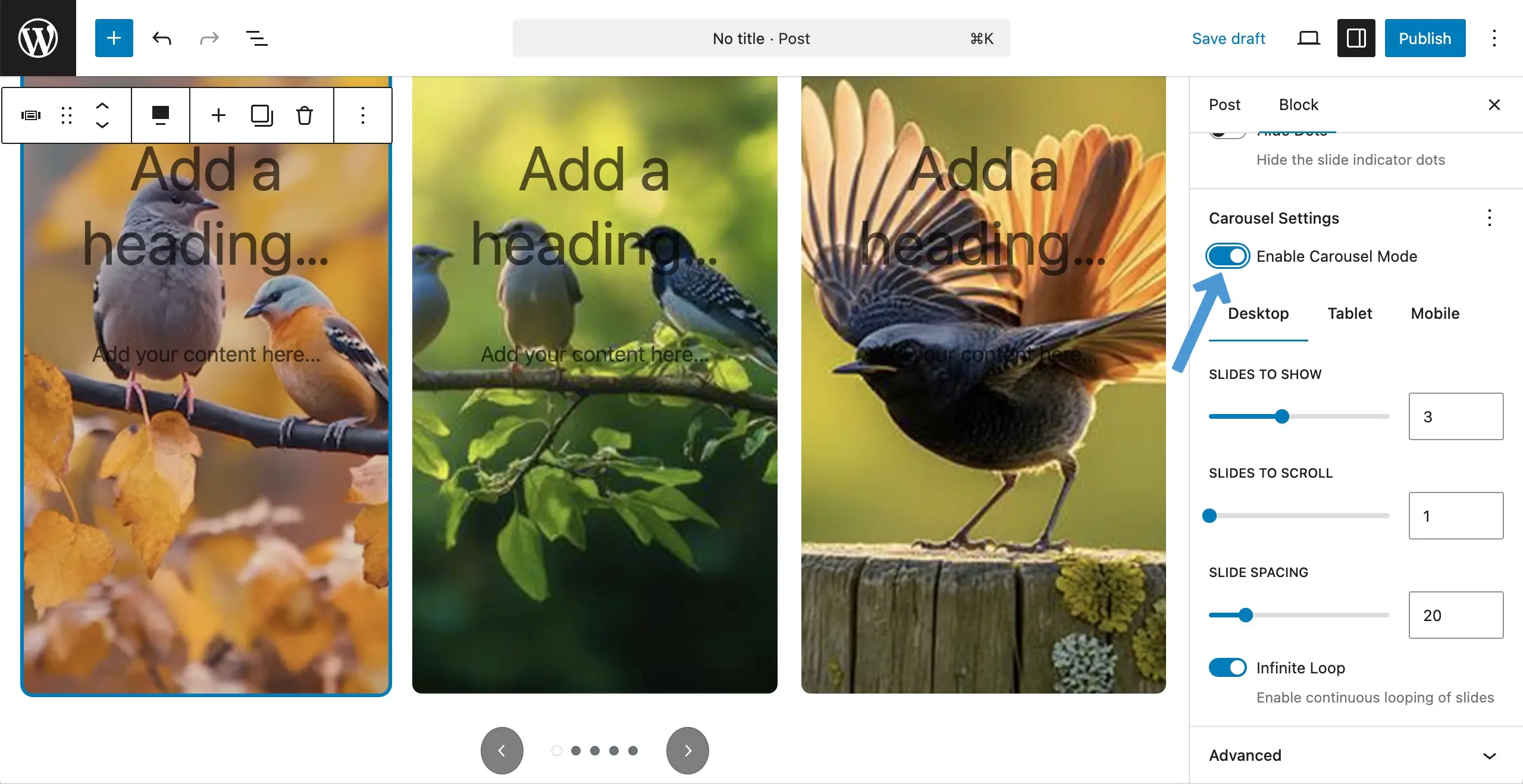
Once the carousel mode is enabled, you’ll see the block’s layout get changed.
Step 3: Configure the Settings of the Carousel Mode #
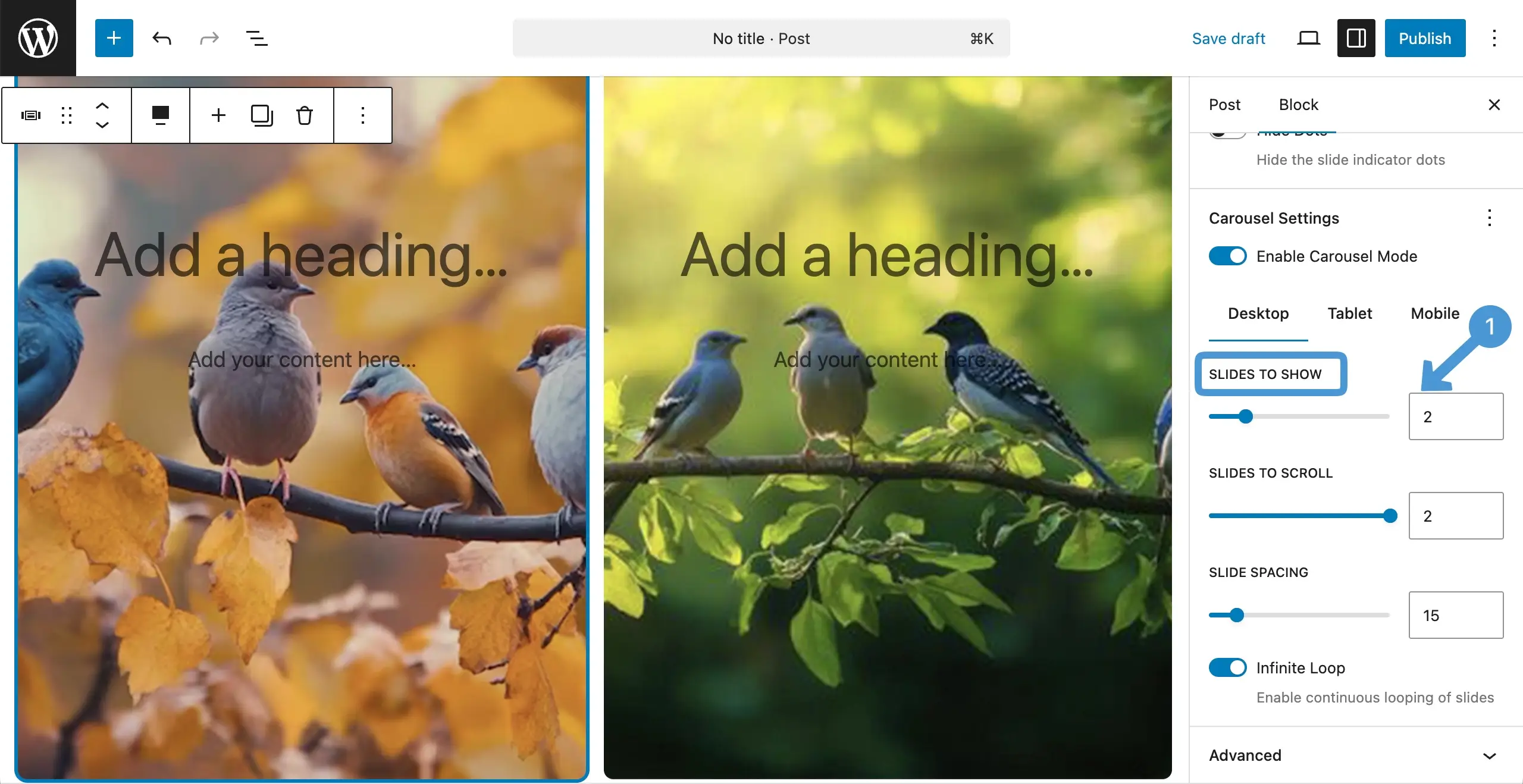
From the Slides to Show option, you can set the number of slides you want to show on the layout.
Conclusion #
Use Carousel Mode with care to keep your slider smooth and easy to follow. Show a clear number of slides and avoid too fast scrolling. Keep spacing clean and test on all devices. This helps you create a simple, user-friendly, and engaging slider experience.


