
Not all slides should look the same. Depending on your layout or design goal, you may want the slide content to appear at the center, top, bottom, or elsewhere. Sliderberg makes this easy through block alignment tools built right into the editor.
In this guide, you’ll learn how to control the position of your content within each slide.
If you want to learn how to add an image and other content in Sliderberg, you can refer to the documentation “How to Add Images, Headings, Texts, and Buttons to Slides.“
Step 1: Select Your Slide and Content #
First, select your Slide by navigation arrows and select your content by clicking above or below.

Step 2: Adjust Your Content Position #
To adjust the Content position, you must first select the slide.
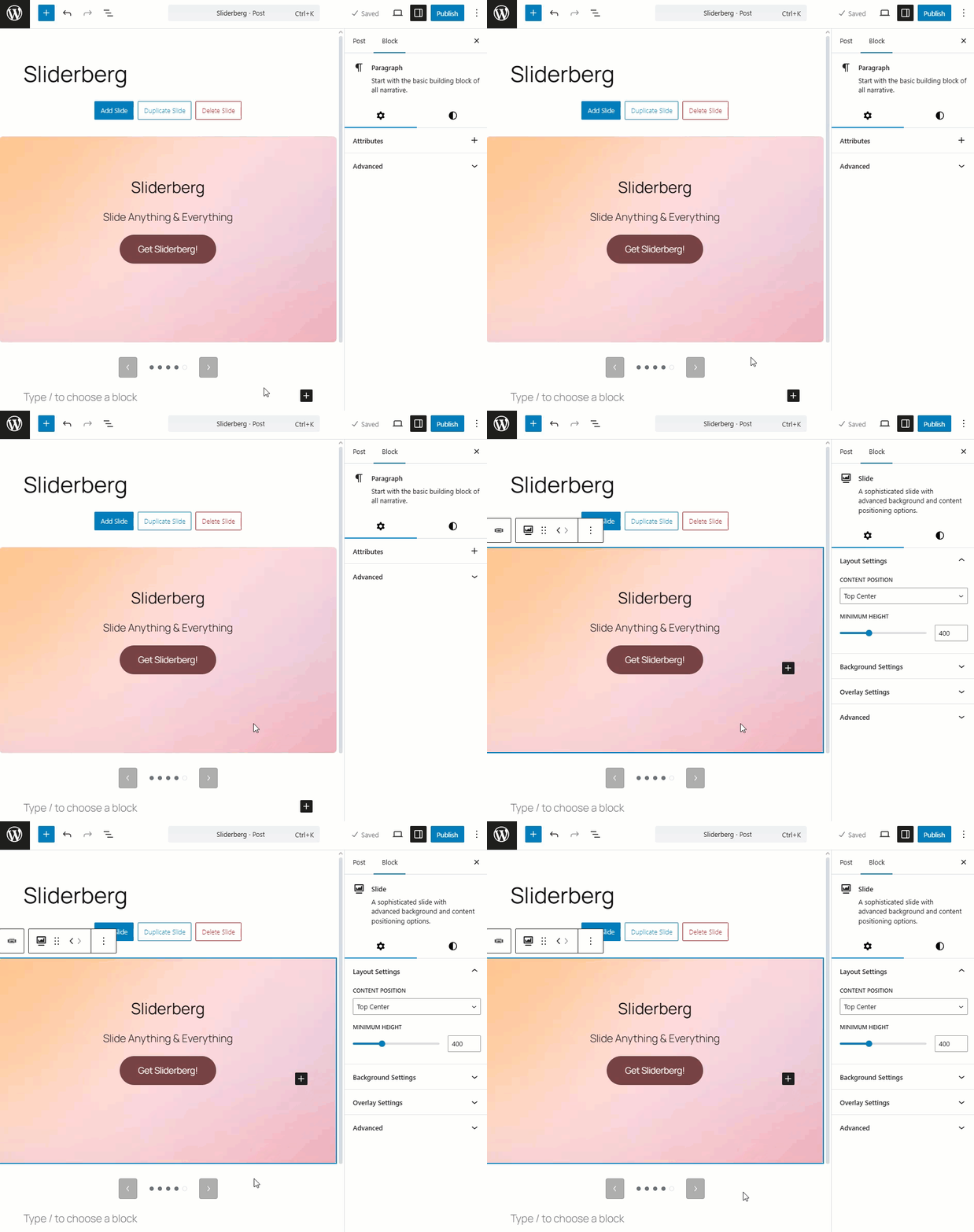
The content you add is generally positioned at the center. You can change the position from the Content Position option on the right sidebar of the block settings..

Select the layout that suits your website.

Again, you can also change the position of every block separately. For instance, I will show you how to change the position of the button below.
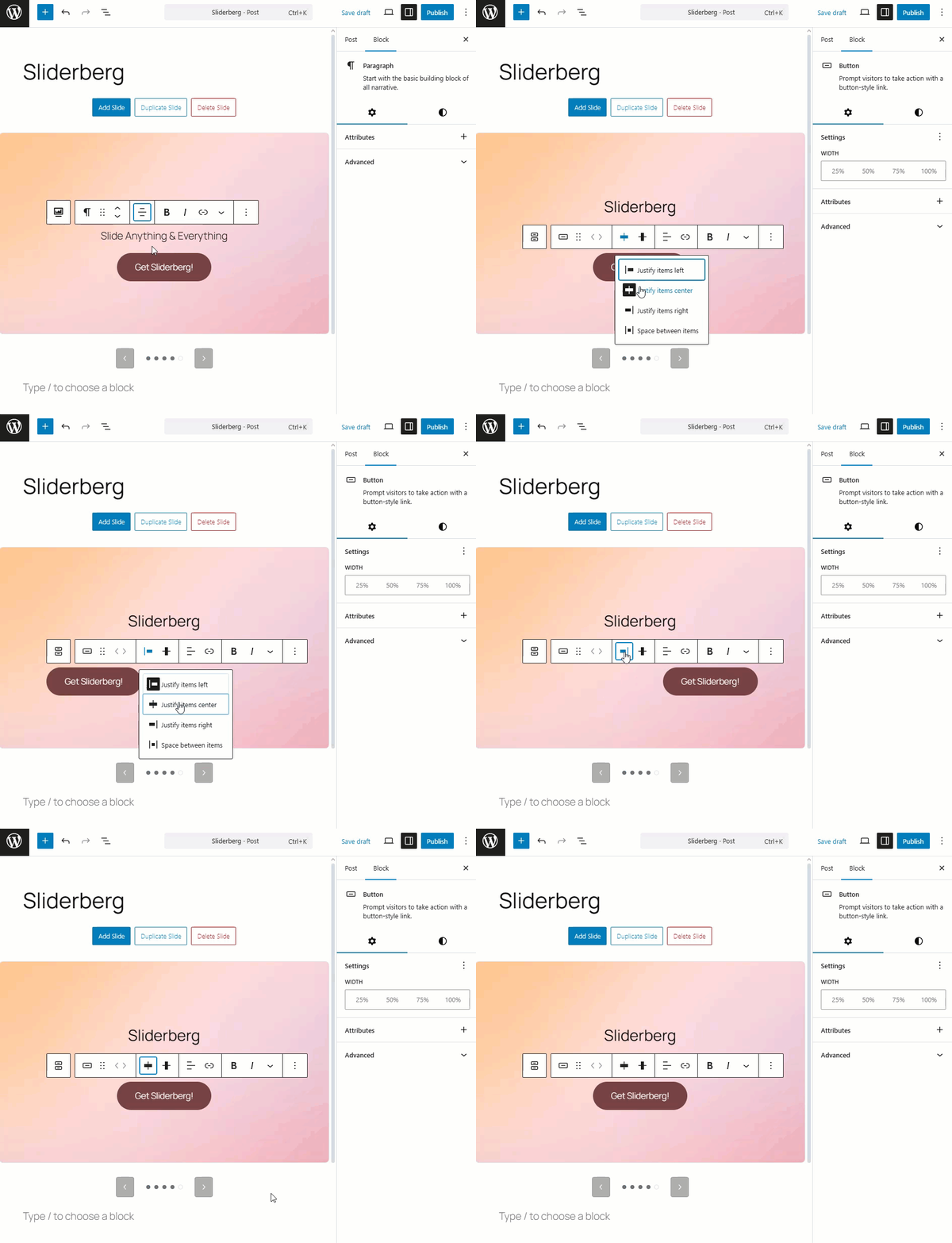
After all the customizations, save or publish your post or page.
Conclusion #
Slide content doesn’t have to stay in one place. Sliderberg gives you full flexibility to position your content where it works best for your message—top for headlines, bottom for call-to-actions, or center for balanced designs.


