
Pagination dots help users see which slide they’re on and encourage interaction. In Sliderberg, these dots are customizable—you can change their color and highlight the active state, all within the block settings, without requiring any extra coding.
This guide shows you how to modify the look and feel of pagination dots in a Sliderberg slider.
Step 1: Select the Sliderberg Slider Block #
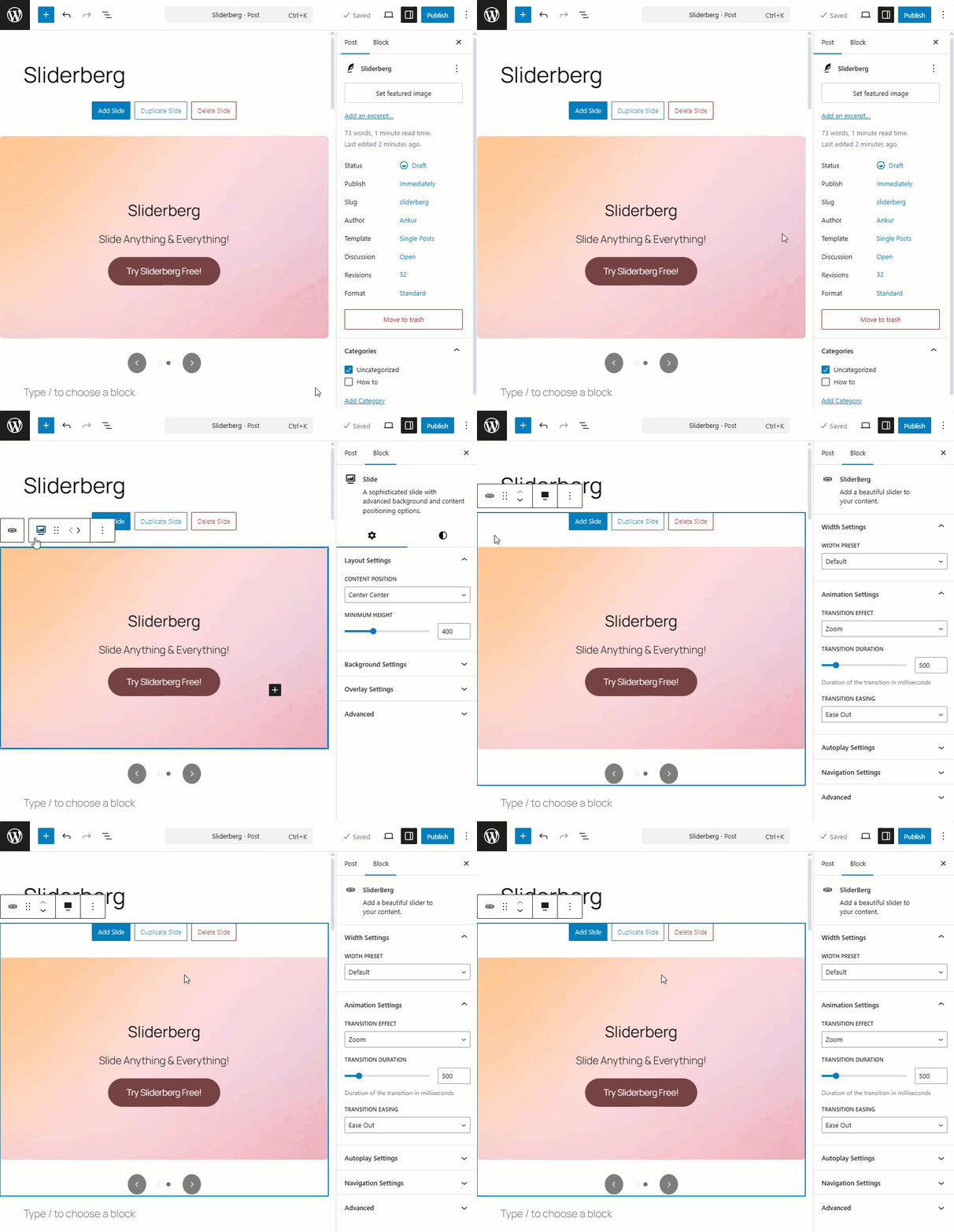
Click inside the slider area until the entire Sliderberg Slider block is selected.
Step 2: Open the Navigation Settings #
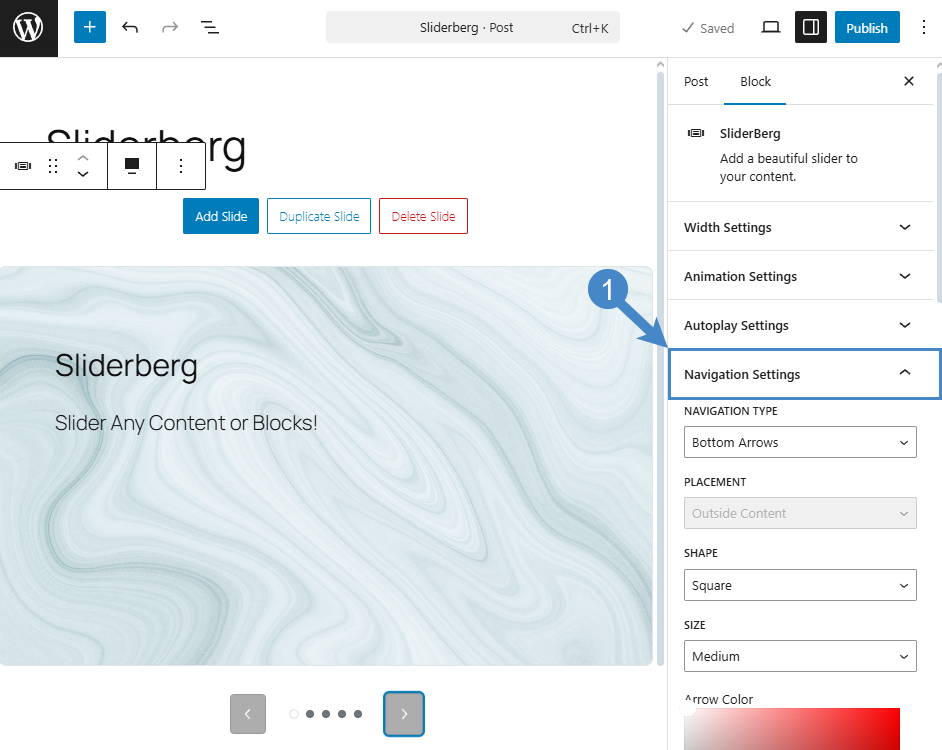
Once selected, look to the right-hand Block settings panel and click on “Navigation Settings.”
Step 3: Change Dot Color #
By default, the pagination dots are enabled. However, you can hide them if you like by enabling the “Hide Dots” option.

To change the Dot Color, you can adjust the color picker or input any hex color code.

To change the Active Dot color, go to Active Dot Color and do the same as above.

Here is the full preview.

Conclusion #
Pagination dots may seem small, but customizing them can have a big impact on navigation clarity and design consistency. Sliderberg makes it easy to match them with your slider’s color scheme and overall aesthetic—all without touching a single line of code.


