
Slides that mix visuals with text and calls to action are more engaging and effective. With Sliderberg, you can add images, headings, paragraphs, and buttons to each slide directly inside the Block Editor.
Now let’s see how you can do that using Sliderberg.
Step 1: Insert Sliderberg Slider Block #
Open your post or page where you want to add Sliderberg. Click the “+” (1), type Sliderberg inside the search bar (2), select the block when it appears (3).

Select the Blocks Slider.

Step 2: Add an Image to the Slider #
Select the Upload Button (1) if you want to add an Image to your Slide. Or you can select an existing one from the media library (2).

Now select the image to upload from your directory.

Step 3: Add Headings and Text #
When you add an Image to the slide, the block will automatically tell you to add a Heading and Text. Add your Headings and content at the dedicated places.

Step 4: Add Buttons #
The beauty of Sliderberg is that you can add any block inside the slider just by clicking the “+” icon (Add Block).
To add buttons to your slide, click the “Add Block” icon (1), type Button in the block search bar (2), and select the block (3).

When the button appears, add text to your button.

You can easily link your button and adjust advanced options for your link.

Save the post or page after adding all the elements to your slider.
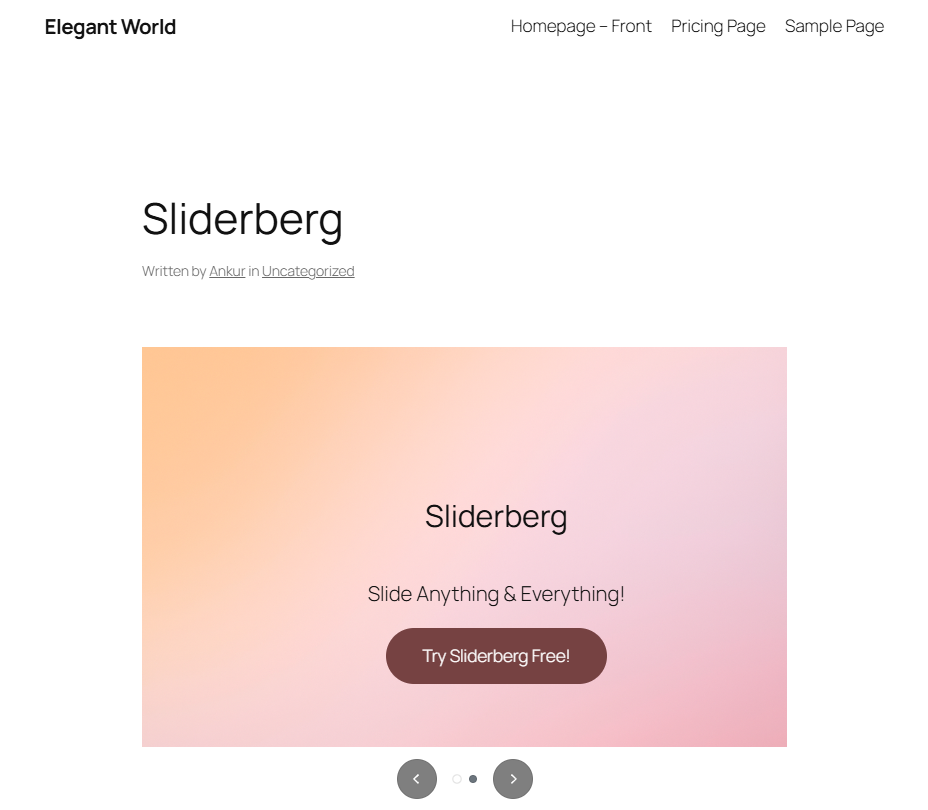
Here is the final demo below.
Conclusion #
Sliderberg utilizes the native WordPress block system to provide you with full control over your slides. Hope this small tutorial helped you!


